


How to Turn Your Phone into a Portable Scanner
December 4, 2025 | by IoT Development Company
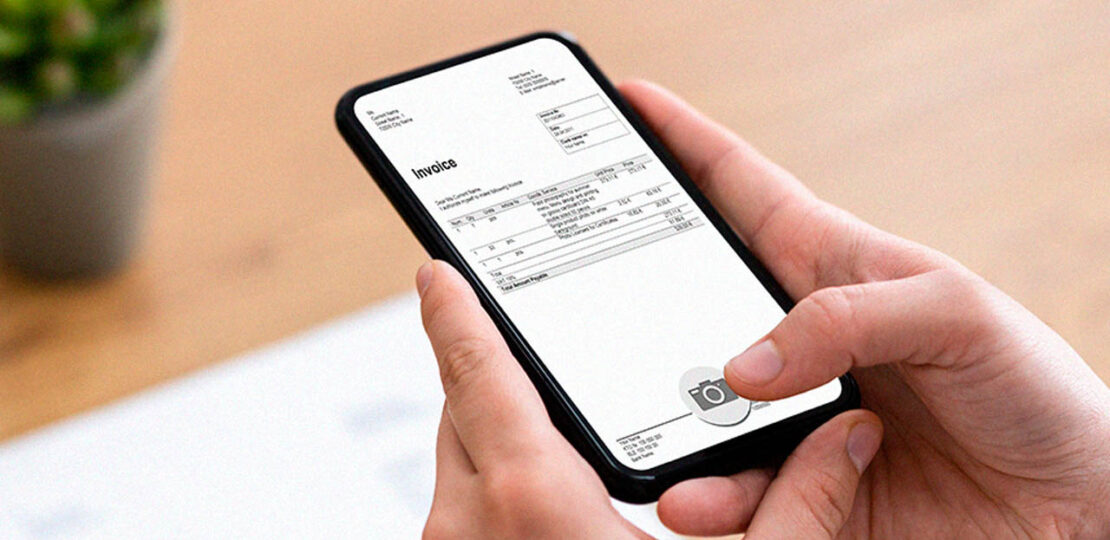
Modern smartphones are powerful enough to replace many standalone devices, including scanners. Whether you need to scan documents for work, school, banking, or personal use, your mobile can do it instantly with high accuracy. Thanks to advanced camera sensors, AI-based text recognition, and dedicated scanning apps, your phone becomes a full digital scanner in seconds.
This guide explains the simplest and smartest ways to turn your Android or iPhone into a portable scanner, along with tips to get clean and professional results every time.
1. Use Built-In Scanning Features
Both Android and iOS now include native document-scanning tools. Most people do not know these features exist, but they are extremely powerful.
A. Scan Documents on Android
Android has scanning built into multiple apps:
1. Google Drive (built-in scanner)
-
Open Google Drive
-
Tap the plus (+) button
-
Select “Scan”
-
Capture your document
-
Crop and adjust
-
Save as PDF
Google Drive automatically enhances clarity, removes shadows, and straightens edges.
2. Google Photos (scan old photos)
Google Photos includes a dedicated feature for scanning printed photos.
-
Open Google Photos
-
Search for “Photo Scan”
-
Follow on-screen instructions
This tool removes glare and gives high-quality results.
B. Scan Documents on iPhone
iPhones have a powerful native scanner built into the Files and Notes apps.
1. Notes App Scanner
-
Open the Notes app
-
Tap the camera icon
-
Select “Scan Documents”
-
Position the document
-
Notes auto-detects edges and captures it
-
Save as PDF or image
2. Files App Scanner
-
Open Files
-
Tap the three-dot menu
-
Select “Scan Documents”
Both tools automatically adjust brightness, contrast, and sharpness.
2. Use Free Professional Mobile Scanner Apps
If you want more advanced features, these apps turn your phone into a portable document center:
1. Adobe Scan
-
Auto-detects documents
-
Converts scans to high-quality PDFs
-
Built-in OCR (text extraction)
-
Perfect for office and school work
2. Microsoft Lens
-
Excellent for documents, whiteboards, IDs, and handwritten notes
-
Saves directly to OneDrive, Word, PowerPoint, and PDF
-
Great for business users
3. Google PhotoScan
-
Designed for scanning photos
-
Removes glare and enhances image details
4. CamScanner (free version)
-
Offers multiple filters and enhancement tools
-
Great for multi-page scanning
-
Text recognition and cloud backup
These apps help you create clean, professional documents ready for print or digital sharing.
3. Use OCR to Turn Scans into Editable Text
OCR (Optical Character Recognition) allows your phone to convert scanned pages into text.
Useful for:
-
Copying notes
-
Extracting data
-
Editing documents
-
Creating PDFs
Most scanners like Adobe Scan or Microsoft Lens support OCR.
On iPhone, Live Text allows you to point the camera at text and instantly copy it.
On Android, Google Lens does the same job:
-
Open Google Lens
-
Choose “Text”
-
Copy or translate instantly
This makes your phone not just a scanner, but also a smart text reader.
4. Tips for Perfect Scans Using Your Phone
To get professional-quality scans, follow these simple tips:
1. Use Good Lighting
Place the document under bright, even lighting.
Avoid shadows and reflections.
2. Lay the Document on a Dark Background
This helps the scanner detect edges clearly.
3. Hold Your Phone Steady
Keep your hands steady or place the phone on a stand for ultra-clear scans.
4. Clean the Camera Lens
Dust or fingerprints can reduce clarity.
5. Use Auto-Capture Mode
Most scanner apps automatically take the photo when aligned correctly.
6. Apply Filters Wisely
Use “Document,” “Black & White,” or “Clear” mode for crisp results.
5. Create Multi-Page PDFs on Your Phone
If you need to scan several pages:
On Android (Google Drive):
-
Tap Scan
-
Tap “Add page” after each scan
-
Save as a single PDF
On iPhone (Notes App):
-
Keep scanning multiple pages
-
Tap “Save”
-
iPhone auto-combines all pages into one PDF
Scanner apps like Adobe Scan and Lens also support multi-page scanning.
6. Store and Share Scanned Documents Easily
Your phone makes storing and sharing files very easy:
Save To:
-
Google Drive
-
OneDrive
-
iCloud
-
Dropbox
-
Local storage
Share As:
-
PDF
-
Image file (JPG/PNG)
-
Text file (OCR)
This is faster than using a traditional scanner or computer.
7. Best Uses of Mobile Scanning
Turning your phone into a scanner is perfect for:
-
Office documents
-
ID cards and certificates
-
Receipts and bills
-
Contracts and forms
-
School notes
-
Handwritten pages
-
Photos
-
Old paper records
Professionals, students, teachers, freelancers, and business owners all benefit from this.
Conclusion
You no longer need a bulky flatbed scanner to digitize your documents. With built-in smartphone tools and powerful free apps, your phone becomes a complete scanner that fits in your pocket.
Whether you want to scan documents, extract text, create PDFs, or store files online, your Android or iPhone can handle everything. By using the right apps and following simple tips, you can produce clean, high-resolution scans quickly and conveniently anytime, anywhere.
RELATED POSTS
View all


The Psychology of Discounts: Why We Love to Save
November 19, 2025 | by IoT Development Company

Global IV Bags Market Prominent Drivers, Segmentation, Growth Rate, Overview & Future Prospects 2025-2034
November 12, 2025 | by IoT Development Company

Modern Innovations Driving Fastener Technology
October 11, 2025 | by IoT Development Company